

Want to watch Castle on your TV? Castle supports casting, so you can send videos from your phone to a compatible screen. You can also check whether your TV supports Android apps before trying to install Castle APK.
This guide covers Android TV compatibility, setup steps, remote controls, safety checks, and common problems. It also explains when casting from your phone may be a better option. Check your TV's system and app support before you begin.
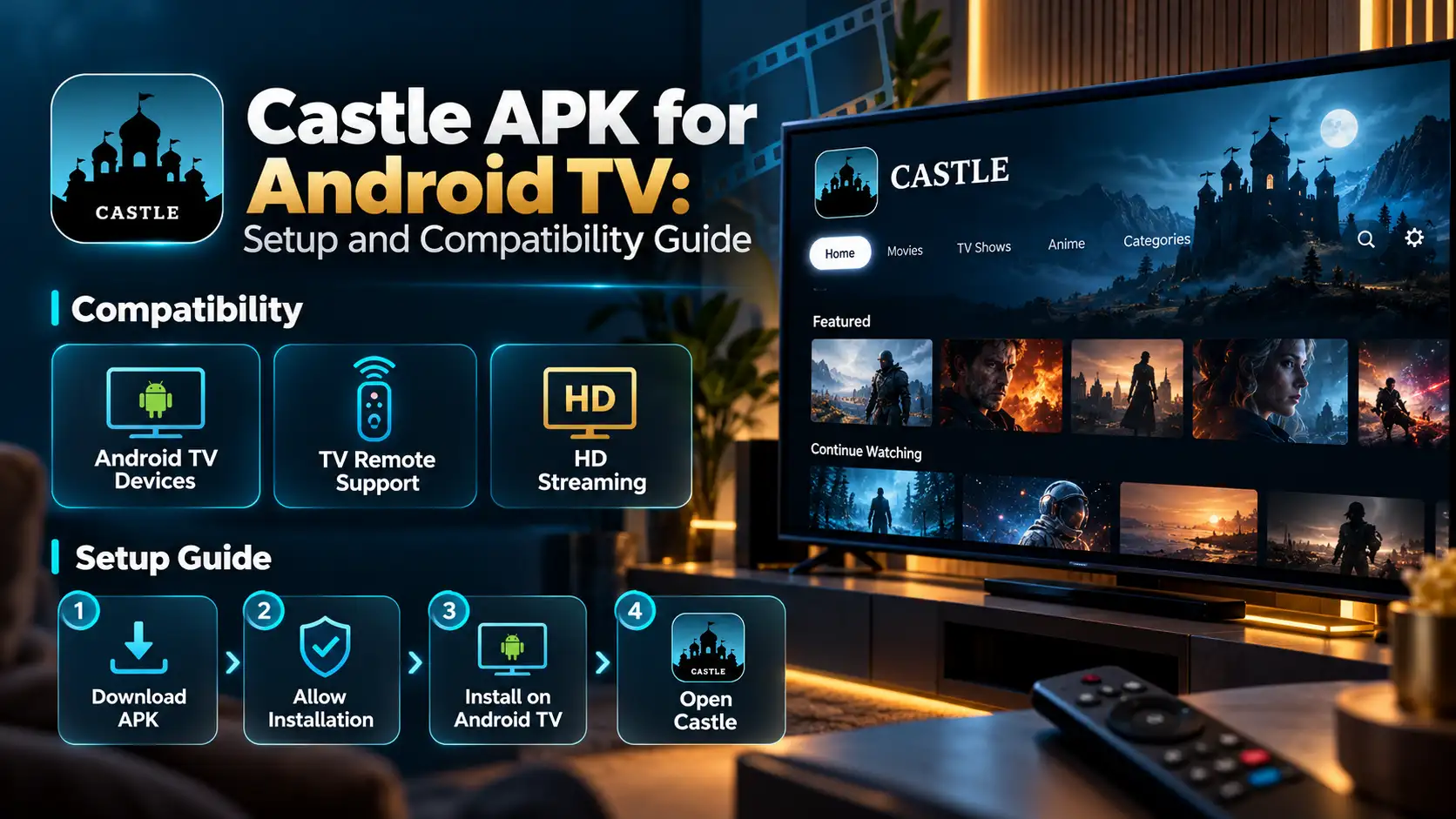
Can You Use Castle APK on Android TV?
Castle APK is an Android app, but that does not mean it works on every Android TV. Your TV needs a compatible Android environment, and the app must work with the device's software and controls.
Understanding Android TV App Compatibility
Castle requires Android 6.0 or above. Check your TV's system version before trying to install the APK. Meeting this requirement does not guarantee that the app will work. Some apps also need features that a TV does not support.
Android TV and Other Smart TV Systems
Smart TVs use different operating systems. Android TV and Google TV support Android apps, while other TV systems may not support APK installation. Check your TV's official guide before downloading an app file.
What to Check Before Using Castle APK on a TV
Check the TV's Android version, available storage, and support for APK files. Castle's listed file size is 34.5 MB. Keep extra space available for installation and app data. Download the APK only from the official Castle website before installing it.
Castle APK Features for TV Viewing
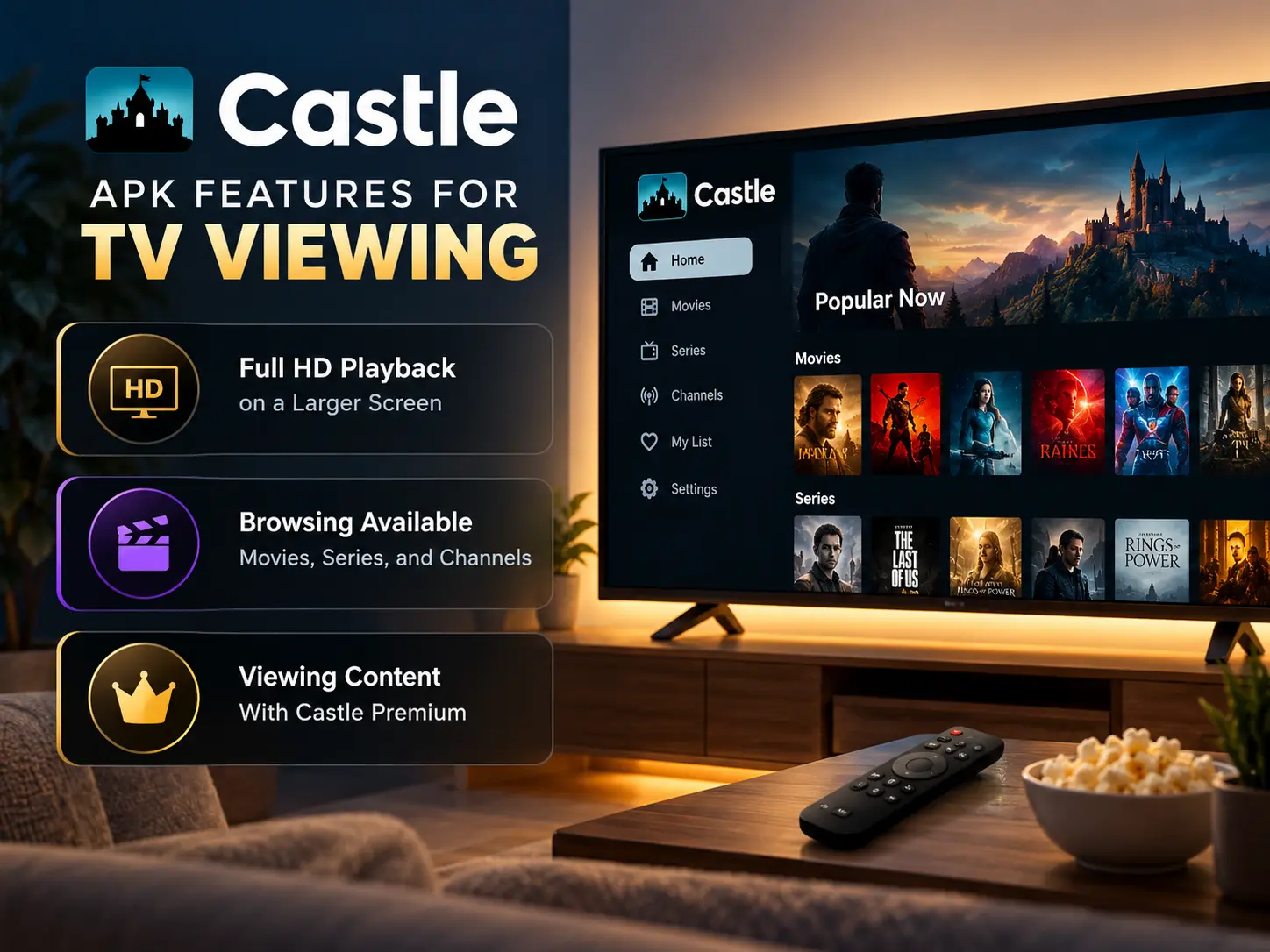
Castle supports several features for viewing content. How these features work on a TV depends on app compatibility and your setup.
Full HD Playback on a Larger Screen
Castle supports Full HD 1080p playback. This can provide clear video on a compatible screen. The quality you see also depends on the video source, internet connection, and display. Specific titles and regional availability may vary.
Browsing Available Movies, Series, and Channels
Castle provides access to video content through the app. The titles you can watch depend on what is available in your region. Browse the app to check its content and available playback options. Do not assume every title is available to every user.
Viewing Content With Castle Premium
Castle has an ad-supported free tier and a paid Castle Premium plan. Castle Premium supports up to 3 phones and 2 TVs. Check the plan details before subscribing to understand how the device limits apply to your use. Do not assume that installing Castle APK on a TV automatically activates Premium access.
Castle also supports offline downloads. However, download options on a TV depend on the app's available features and device compatibility.
Android TV vs. Google TV: What Users Should Check
Android TV and Google TV are related TV platforms, but the user experience and available settings can differ. Before installing Castle APK, check the operating system and the device's support for Android apps.
Understanding the Operating System
Android TV provides an Android-based TV system. Google TV uses an Android-based platform with a different interface. The home screen and settings may look different, but the platform name alone does not prove that Castle will work.
Checking App and Device Compatibility
Check your TV's Android version and whether it allows APK installation. Castle requires Android 6.0 or above. You should also check storage space and whether the app can work with your TV remote.
Why TV Brand Alone Does Not Confirm Support
A TV brand can sell models with different operating systems. Two TVs from the same brand may not support the same apps or installation methods. Check your exact model's official guide before trying Castle APK on Google TV or Android TV.
Is Castle APK Safe to Use on Android TV?
The safety of an APK depends on its source and whether the file has been changed. A file name or logo does not prove that it is genuine. Check the file before installing it on your TV.
Check the APK Source
Download the APK only from the official Castle website.Check who provides the file and review the app details on the download page. Do not trust a file just because it uses the Castle name or logo. Matching details alone cannot prove that an APK is genuine or safe. If you cannot confirm the source, do not install the file.
Review Permissions and Security Alerts
Check the permissions requested during installation. Do not ignore security warnings or allow access that does not seem needed. If your TV or security software flags the file, stop and review the warning before continuing.
Understand the Risks of Modified APK Files
Modified APK files can contain changes made by unknown sources. They may include harmful code or unwanted software. Avoid files that promise unlocked Premium features or ad-free use without the official Castle website. A security scan can help find threats, but it cannot guarantee safety.
How to Install Castle APK on Android TV
The exact installation steps depend on your TV model and software. Check your TV maker's guide before changing settings or installing an APK.
Prepare the APK File
Get the Castle APK from the official Castle website. Check the file details and scan it with a trusted security tool before use. A scan can help find some threats, but it cannot prove that a file is safe. Do not continue if you cannot confirm the source or your TV shows a security warning.
Review TV Installation Settings
Check whether your TV supports installing APK files. Some devices require permission to install apps from a source outside the built-in app store. Only change these settings if you understand the risks and trust the file source.
Follow the Installation Prompts
Use your TV's supported file installation method. Follow the instructions on the screen. If the TV rejects the APK, do not try to force the installation. Check the device guide and confirm that the file is compatible.
Check the App After Installation
Open Castle and check whether it starts. Test the main controls and try playback. Castle supports Full HD 1080p, casting, and offline downloads, but these features can depend on app and device compatibility. If the app shows an error, check the TV's guide before trying again.
Using Castle APK With a TV Remote
A TV remote works differently from a phone's touchscreen. An app that works on a phone may not respond to every TV remote control.
Navigating the App With Remote Controls
Use the arrow keys to move between items and the select button to open them. The back button may return to the previous screen. The exact controls depend on the app and remote.
What to Do if Controls Do Not Respond
Check whether the app responds to arrow keys and the select button. Restart the app if needed. If the controls still fail, Castle may not be fully compatible with your TV's interface. Avoid installing unknown control tools to fix the issue.
Should You Install Castle APK or Cast From Your Phone?
Installing Castle directly on a TV and casting from a phone are different options. The better choice depends on your devices and which method works with your setup.
When Casting May Be the Better Option
Castle supports casting. If the app does not work directly on your TV, casting from a compatible phone may be an option. This can also help if your TV does not support APK installation.
Check Casting and Device Compatibility
Check that your phone and display support a compatible casting method. Follow the device maker's setup guide. Casting support does not mean every phone, TV, or network will work together.
Common Castle APK Problems on TV
TV installation problems can come from the APK file, device software, or app compatibility. Check the error message before making changes.
The APK Will Not Install
Check that your TV supports APK installation and that the file is complete. Confirm the listed version and file size, then review any security warning.
The App Does Not Open or Play Videos
Restart Castle and check your internet connection. If the problem continues, the app may not support your TV's software or playback system.
The App Is Difficult to Navigate
Check whether the remote can move between items and select them. If controls do not respond, the app may not be designed for your TV's interface.
Alternatives When Castle APK Is Not Compatible With Your TV
If Castle does not work on your TV, consider other viewing options instead of forcing the installation.
Check for Compatible Streaming Apps
Look for streaming apps in your TV's built-in app store. Check each app's official listing for supported devices and features.
Consider a Supported Casting Device
Castle supports casting. A compatible phone and casting device may let you view content on a larger screen without installing the APK directly on the TV.
Review Official App Availability
Check the developer's official source for supported devices and app versions. Do not assume that a third-party TV APK or installer is official.
Frequently Asked Questions About Castle APK for TV
Can I Use Castle APK on a TV Without Android?
An APK needs a compatible Android environment. A TV with a different operating system may not support direct installation. Casting from a compatible device may be another option.
Will Castle APK Work With Every TV Remote?
No. Remote support depends on the app and TV interface. Some controls may not respond as expected.
Does Installing an APK Guarantee That It Will Work on My TV?
No. Your TV must support the app's Android requirements and features. Installation alone does not guarantee that the app will open or play videos.
Check Your TV Compatibility Before You Start
Before installing Castle APK, check your TV's software and support for Android apps. Not every Android TV can run every APK file. Review your TV maker's guide and confirm that the app can work with your device. Check the file source and read any security warnings before you continue.
Ready to try Castle on your TV? Check your device support and download only from the official Castle website before you begin.